

spring 2026 Tutoring
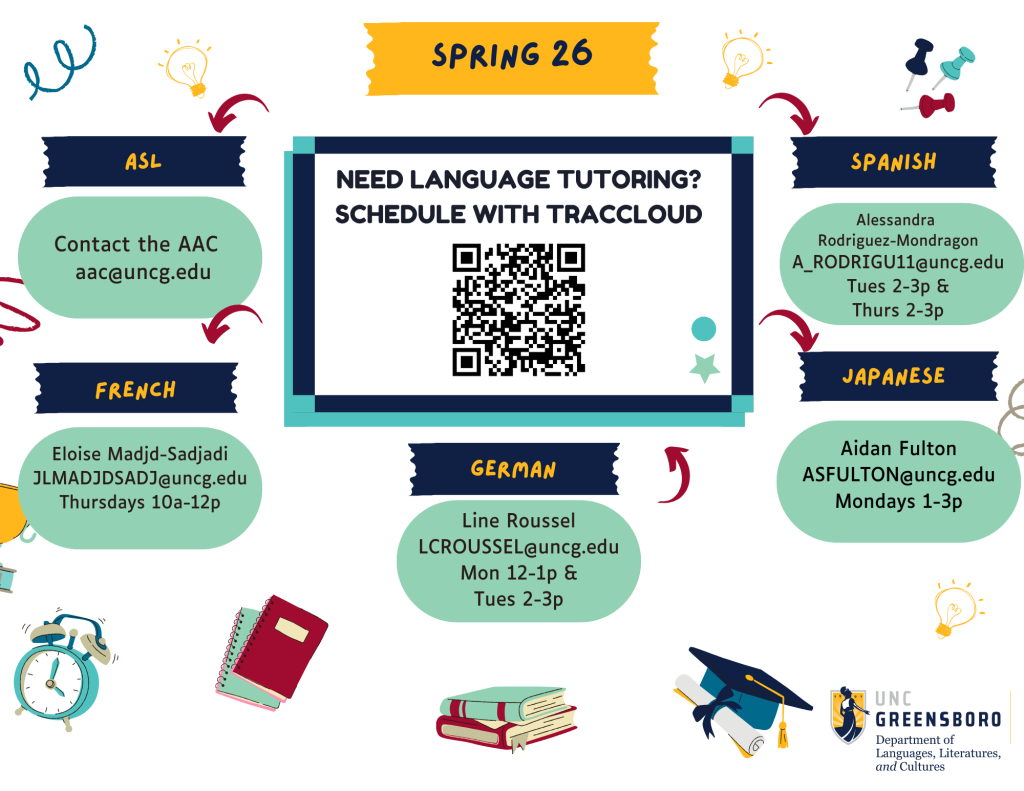
On the TracCloud dashboard, you will use the appointment search module(s) to find an appointment. It’s only 5 easy steps!
Step 1: navigate to the search module relevant to your needs.
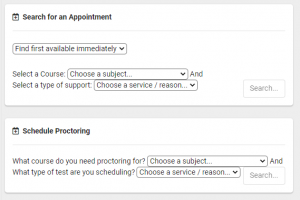
NOTE: All students will have a search widget labeled “Search for an Appointment.” Some students also have a second search module just for proctored exams!
Step 2: Select your course and the reason you would like an appointment, then click “Search.”
Reasons available to you might include:
- Academic Coaching — sessions to develop personalized success plans and academic skills
- Tutoring — content-based practice/Q&A sessions (one-on-one, small group or drop-in, for a specific course)
- Writing Center… — sessions with Writing Center consultants to go over any written work (academic, professional, or personal)
- Speaking Center… — sessions with the Speaking Center consultants to go over any verbal communication task (academic, professional, or inter-personal)
Step 3: From the search results, select the day and time that works best for you.
A few tips:
- The search results are color coded: yellow represents ‘group’ sessions, green represents ‘one-on-one’ sessions, and blue represents ‘drop-in’ times.
- Click the breadcrumb button […] on the top-right of your results to narrow to certain days, locations, types, etc.
- Only available appointment times show up in your results– however, if you walk away from your search results for more than a few minutes, be sure to refresh before booking!
- If you accidentally schedule an appointment, be sure you cancel it so that it will be available to others.
If NONE of the times listed work for you, or you don’t get any search results, click the “Appointment Request” button at the bottom of the search results screen. A staff member will get back with you, usually within 1-2 days.
Step 4: Review the appointment details.
If desired and available, you may be able to select a checkbox to make the appointment weekly recurring, online or in-person, or change the duration.
NOTE: Each center and/or staff person may have different options, so view the appointment details carefully to make sure you’re scheduling the appointment you want!
Step 5: Click “Save” to book the appointment.
TracCloud will then email you with all the session details (and a calendar invite to quickly and easily add it to your phone or Outlook calendar).
This information is current as of March 19, 2025, as provided by the Academic Achievement Center website.
Download: How to schedule a tutoring appointment through TracCloud (PDF)